Natural Language Search In Gallery
Natural Language Search (NLS) transforms how users discover, retrieve and interact with content in Kapost Gallery. Instead of relying on exact keywords, taxonomy tags, or complex filters, users can search using conversational phrasing and descriptive queries that reflect their intent. This makes it easier to find relevant content and collections, even when users don't know the exact content name or how the content is categorized.
By understanding the context behind search queries, NLS help users discover content that aligns with their specific needs, such as product launch materials, customer success stories, sales enablement resources, and so on. Search results are prioritized based on relevance, with match scores indicating how strongly each result aligns with the user's query. This help users quickly identify the most relevant content without manually browsing through numerous content. By simplifying content discovery and making Gallery more intuitive and accessible, NLS helps users find the right content faster.
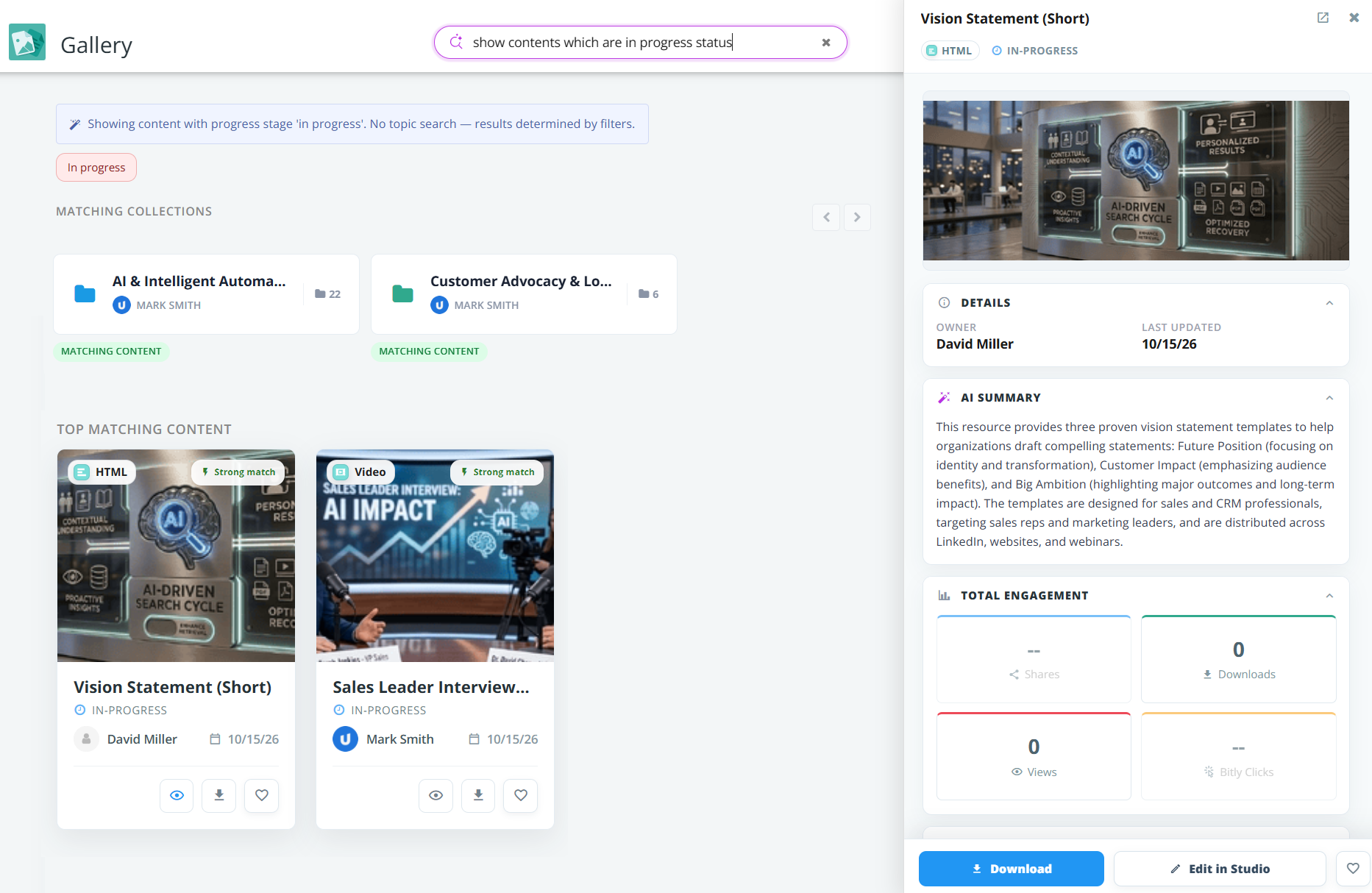
Searching for Content
-
Open Gallery from the top panel.
-
In the search bar at the top of the page, enter a natural language query. Describe the content you need, including relevant topics, audiences, deadlines, workflow statuses, etc.

For examples of search queries and tips for writing effective prompts, refer to Example Prompts and Tips for Natural Language Search.
-
Review the matching collections and content tiles. Use the match indicators to identify relevant content.
-
Select a content tile to view its details on the right panel.
Note: Some queries may be interpreted as filters rather than topic-based searches. For example, a query specifying the In Progress status may return content based on its workflow status. Review any message displayed below the search bar to understand how your query was applied.
Understanding Search Results
Gallery displays matching collections and individual content in separate sections to help you find the content you need.
Matching Collections
This section displays collections containing content relevant to your search. Each collection tile displays the collection owner and the number of content available in the collection. Select a collection to view its contents.

Top Matching Content
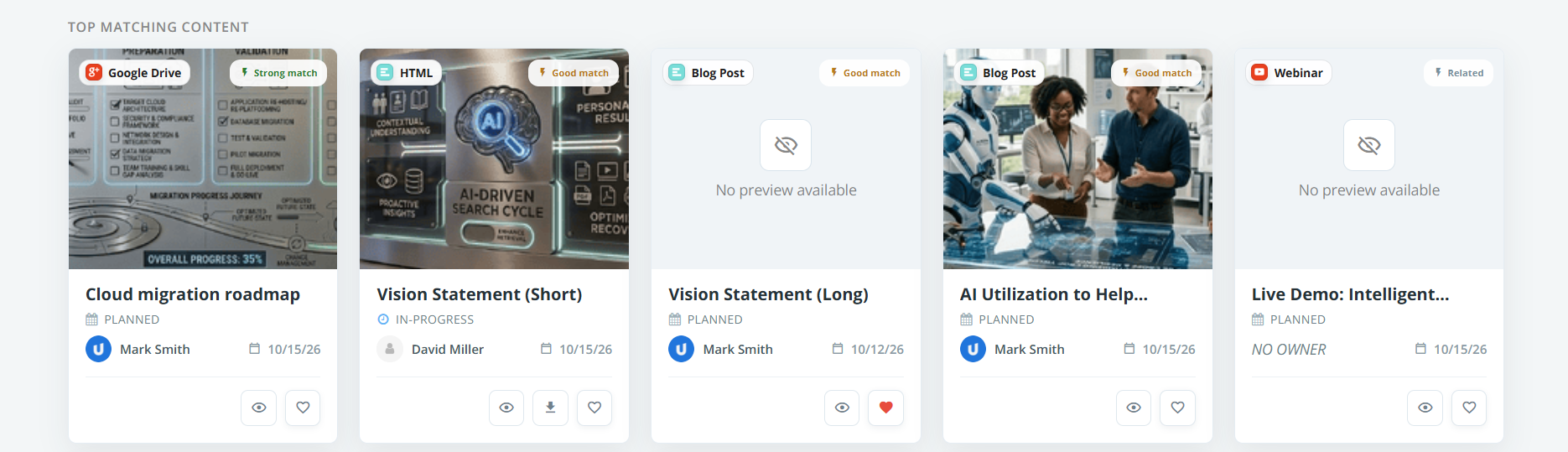
This section displays individual content relevant to your search query. Each content tile include the following information:
-
Content type: Displays the content type, such as HTML, Video, etc.
-
Match indicator: Indicates how closely the content matches your search query.
-
Preview: Displays the thumbnail associated with the content.
-
Title: Displays the content title.
-
Status: Displays the current status of the content, such as Planned, In Progress, or Complete.
-
Owner: Displays the content owner.
-
Last updated date: Shows when the content was last updated.
-
Available actions: Provides options to preview, download, or favorite the content, depending on the applicable actions.
Understanding Match Indicators
Match indicators help you assess the relevance of search results. Review the content details to confirm that a content meets your requirements. Each content tile may display one of the following match indicators:
-
Strong match: The content closely matches your search query.
-
Good match: The content has a relevant match to your query.
-
Related: The content has a broader thematic or contextual relationship to your query.
Tip: Review Strong match results first when looking for content that closely aligns with your needs. Good match and Related results may help you discover additional resources.
Viewing Content Details
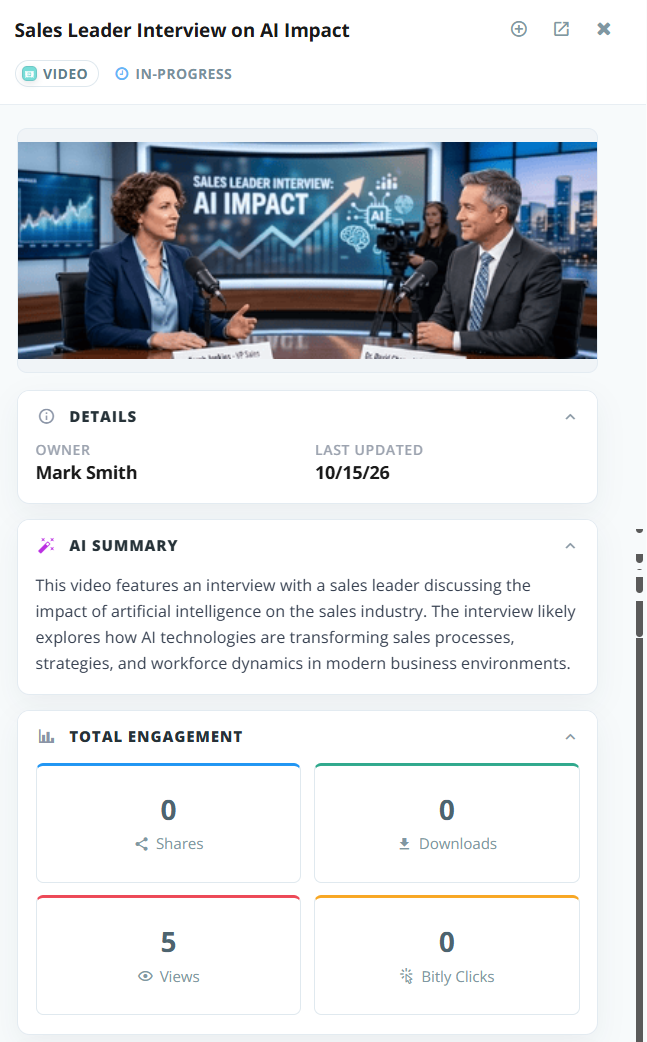
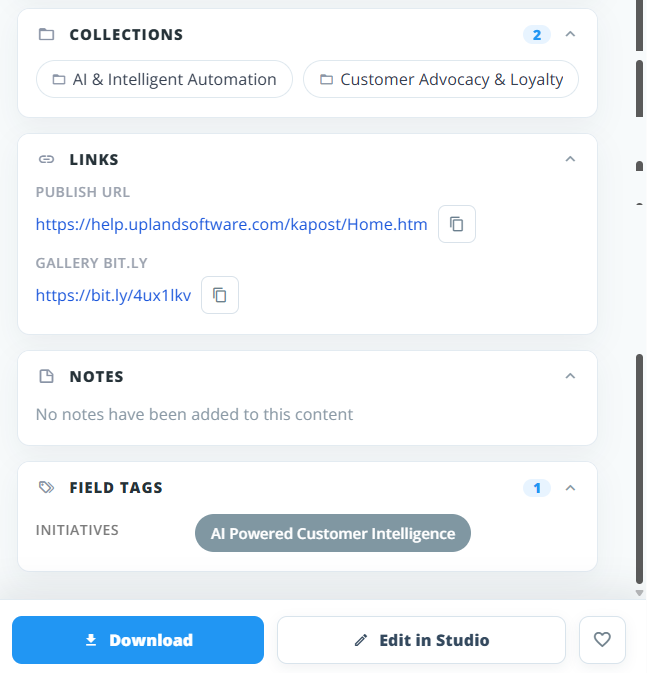
Click on a content tile to open its details panel on the right side of Gallery. This panel provides additional information about the selected content such as:
-
Content Information: Displays the content title, content type, and current status on the top of the panel. Use this information to confirm that you have selected the correct content.
-
Bundle
 : Adds this content to a bundle. This icon appears only when the setting to add content to a bundle is enabled.
-
Open Full Preview
 : Opens the content within the Gallery in a new tab.
-
Details: Displays owner name and the last updated date of the content.
-
AI Summary: Provides an AI-generated overview of the content. Review the summary to understand the content's purpose and key information before downloading it.
-
Total Engagement: Displays available engagement metrics for the selected content, including:
-
Shares: The number of times the content has been shared.
-
Downloads: The number of times the content has been downloaded.
-
Views: The number of times the content has been viewed.
-
Bitly Clicks: The number of clicks tracked through Bitly.
Tip: A dash indicates that a metric is unavailable.
-
-
Collections: Displays all the collections to which the content has been added. Click on any collection to open it.
-
Links: Displays the published links associated with the content.
-
Notes: Displays the notes added in the Gallery section of the content details page.
-
Field Tags: Displays all the tags added in the content.
-
Download: Downloads the content.
-
Edit in Studio: Opens the content in Studio. This option is displayed only if the user has access to the content.